

Headless
The Headless tab is where you connect your shop to the outside world through Orderain's API. Open Settings from the dashboard sidebar and select the Headless tab to configure allowed origins and manage API tokens.
It's useful for two kinds of people:
- Merchants. Connect an AI assistant like Claude, ChatGPT, or Cursor to your shop with the MCP server, so you can manage products, orders, and even your store's design using plain language — no code required.
- Developers. Build a custom storefront on top of Orderain instead of the built-in one, powered by your shop's data through the API.
Allowed Origins
Add up to 3 allowed origins for your shop. These origins are the only ones allowed to make API requests to your shop.
- Enter an origin (for example
https://example.com) and click Add. A counter shows how many you've added (for example 1/3 origins added). - Remove an origin with the × next to it.
- Click Save Origins to apply your changes.
API Tokens
Create and manage API tokens to access your shop data programmatically. The View Documentation link opens the full API reference.
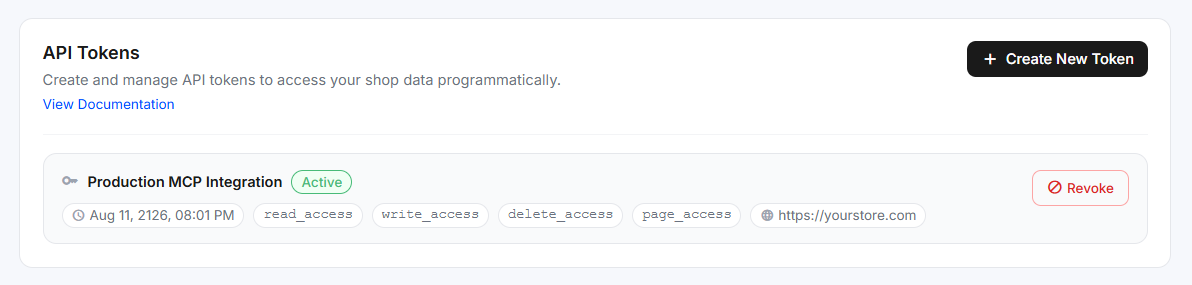
Each token in the list shows:
- Name and a status badge — Active or Revoked.
- Created / Expires. The token's date and time.
- Scopes. The permissions granted, such as
read_access,write_access,delete_access, orpage_access. - Origins. The origin the token is tied to.
Creating a token
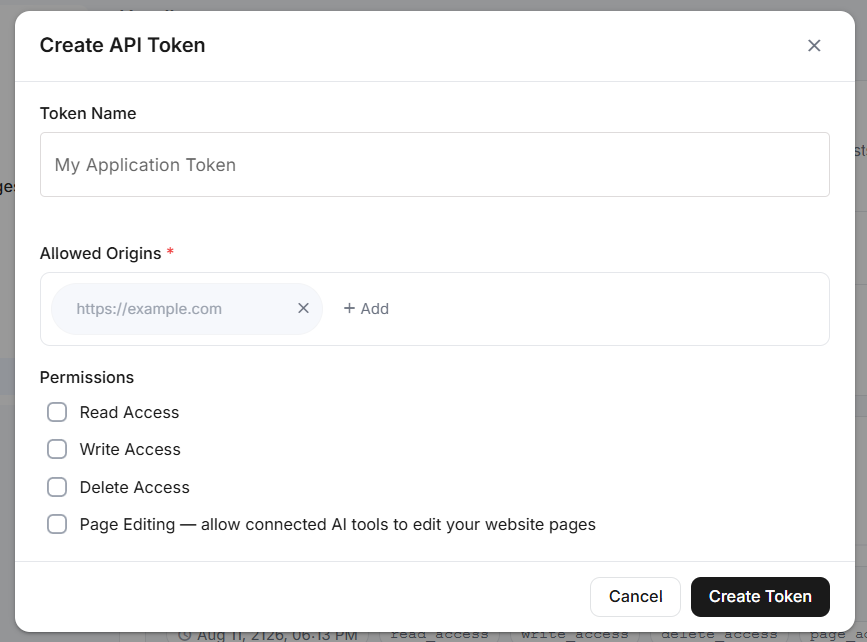
Click + Create New Token to open the Create API Token dialog. Give the token
a clear, professional Token Name that says what it's for (for example
Production Storefront, Claude Assistant, or Analytics Integration), add an
Allowed Origin (your real domain, such as https://yourstore.com), and tick the
Permissions it needs (Read, Write, Delete, or Page Editing). Then click Create
Token.
When it's created, a Token Created Successfully dialog appears showing:
- The full token. Copy it now — you won't be able to see it again.
- Token ID and Shop ID.
- Allowed Origins.
- A ready-made MCP connection URL for Claude / ChatGPT / Cursor (see below).
Use the copy icon to copy each value, then click I've Saved My Token.
Revoking a token
Click Revoke on an active token to disable it immediately. A revoked token can no longer be used — any AI assistant or app connected with it stops working and can't read or change your shop anymore. Revoked tokens stay listed for reference but can't be reactivated; create a new token if you need access again.
Connect to AI assistants (MCP)
Orderain provides an MCP server so you can manage your shop from Claude, ChatGPT, or Cursor using natural language — for example "list my shop products" or "show my recent orders". You can also change your store's design through the AI assistant, for example "redesign my homepage hero section" or "update the footer links".
The MCP Server URL is:
https://mcp.orderain.com/mcp
You also need an API token to authenticate the connection. The easiest way is to copy the ready-made URL from the Token Created Successfully dialog (or build it yourself), which already includes your token:
https://mcp.orderain.com/mcp?token=YOUR_TOKEN
Connecting Claude
Open connector settings
In Claude, go to Settings → Connectors.
Add a custom connector
Click Add custom connector.
Set the name and URL
Set the Name to Orderain and paste the MCP URL (with your token in it) as the
URL.
Finish
Leave the OAuth fields empty and click Add. The Orderain tools appear in a new chat.
Try it
Ask something like "list my shop products" or "show my recent orders".
API documentation
For endpoints, authentication, and code samples, see the full Orderain Headless API documentation. The reference covers regions, product categories, products, inventory, shipping, taxes, cart, customers, orders, shop tags, and shop warehouse, and includes client libraries for Shell, Ruby, Node.js, PHP, and Python.
Shipping Rate
Set up shipping zones and rules so customers are charged the right delivery cost at checkout, from the Shipping Rate settings tab.
Orderain Magic
Manage your AI usage, track credit consumption, and buy more AI credits when your balance runs low, from the Orderain Magic page in Account Settings.